File Explorer (still often called Windows Explorer) is Windows' default file manager, but it does far more than that — the explorer.exe process also renders parts of the interface, including the Start Menu and desktop icons. When it keeps crashing, using your PC becomes a real hassle.
If you're not sure what's triggering the crashes, work through these methods:
- Method 1: Clear Windows Explorer History
- Method 2: Run System File Checker
- Method 3: Update your Windows OS
- Method 4: Disable 3rd-Party Explorer Extensions
- Method 5: Separate File Explorer Processes
- Method 6: Scan your PC for Malware
- Method 7: Check Windows Error Logs
Method 1: Clear Windows Explorer History
Most people never think to clear out their Windows Explorer history. Over long stretches of regular use, it accumulates a large amount of file records, and that buildup can eventually make the utility crash.
To clear it:
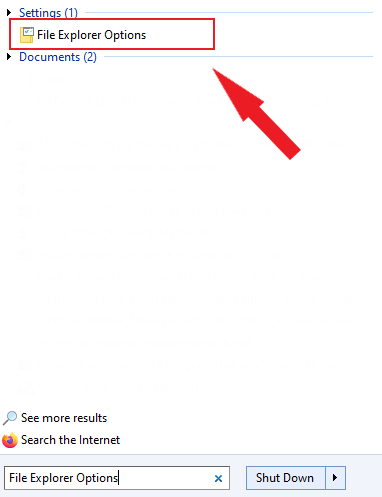
- Open the Start Menu and search for "File Explorer Options."
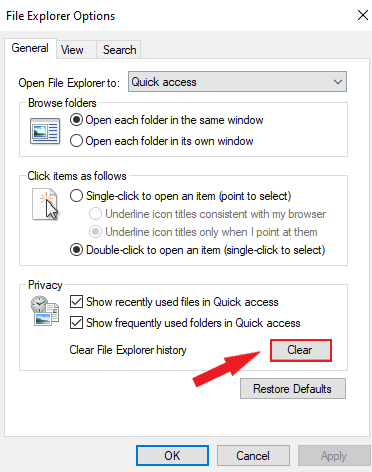
- Open "File Explorer Options" and switch to the General tab.
- Find the Privacy section and click "Clear."
Method 2: Run System File Checker
Ongoing crashes can point to a corrupted or missing system file. To check for that and repair it, run the System File Checker tool through Windows PowerShell:
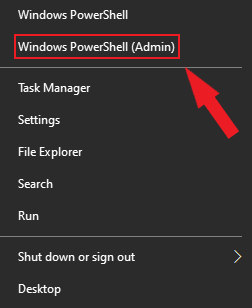
- Right-click the Start Menu and choose Windows PowerShell (Admin).
- Once PowerShell opens, type
sfc /scannowand press Enter.
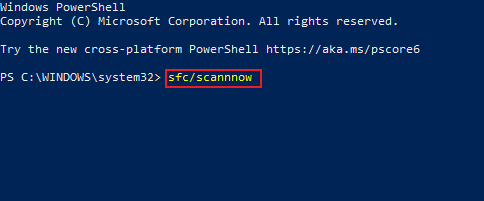
SFC will scan the system for damaged files, and Windows will replace or repair anything it finds — which often resolves File Explorer crashes.
Method 3: Update your Windows OS
An out-of-date Windows install could also be behind ongoing File Explorer crashes.
To check for updates:
- 1. Right-click the Start Menu and select Settings.
- Go to Update&Security, then click Windows Updates.
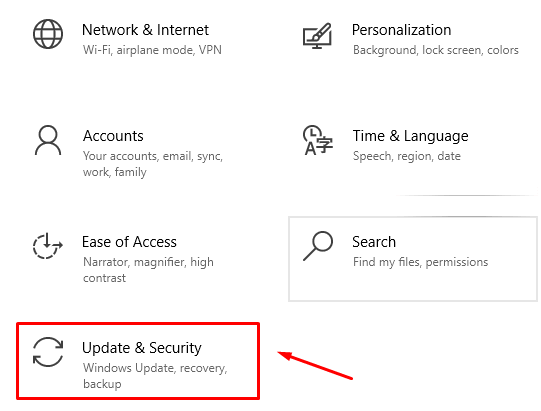
- Install any pending updates you see, or click Check for updates if there aren't any listed yet.
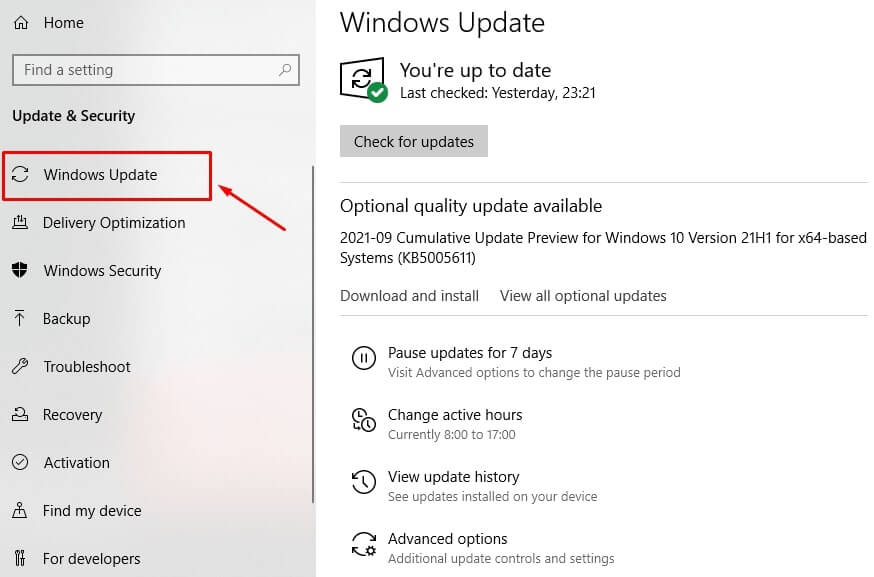
Windows will download anything available. Restart your PC afterward to finish installing.
Method 4: Disable third-party Explorer extensions
Third-party Explorer extensions are sometimes the reason behind these crashes.
What exactly are they?
They're small convenience add-ons — for example, installing 7-Zip lets you right-click a file and compress it directly, instead of opening the app separately.
If one of these extensions becomes unstable, it can crash the explorer.exe process along with it.
You can disable them using a free third-party utility called ShellExView.
- Download ShellExView.
- Run it to scan for installed extensions. To see only third-party ones, go to Options->Hide All Microsoft Extensions.
- Once the scan finishes, select everything shown, right-click, and choose Disable Selected items.
Method 5: Run File Explorer windows as separate processes
By default, File Explorer runs as a single shared process, so every open window lives inside that one process. On a slower PC, this can cause stability problems and, occasionally, crashes.
Here's the fix:
- Open File Explorer and click File -> Change folder and search options.
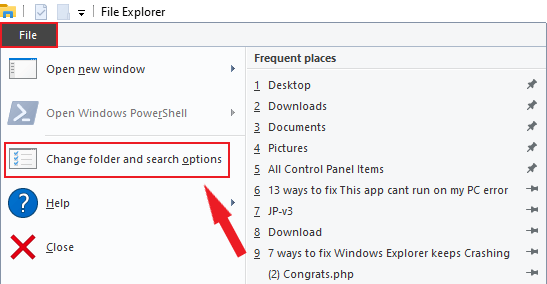
- In Folder Options, switch to the View tab.
- Under Advanced settings, tick "Launch folder windows in a separate process."
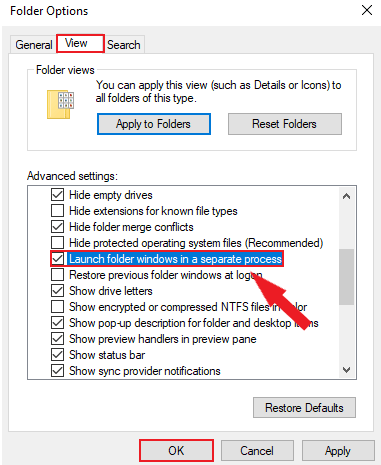
Click OK to apply the setting.
This should stop one Explorer window crash from taking down every other open window.
Method 6: Scan for malware
Persistent crashes can also point to malware on your system, which introduces instability and other issues.
Run a scan with Windows Security:
- Right-click the Start Menu and choose Run.
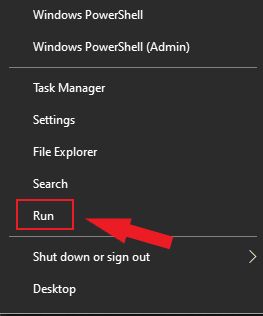
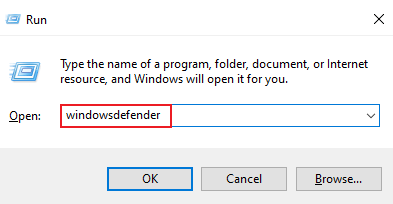
- Type
windowsdefenderand click OK.
- In Windows Security, click Virus & threat protection, then Scan options.
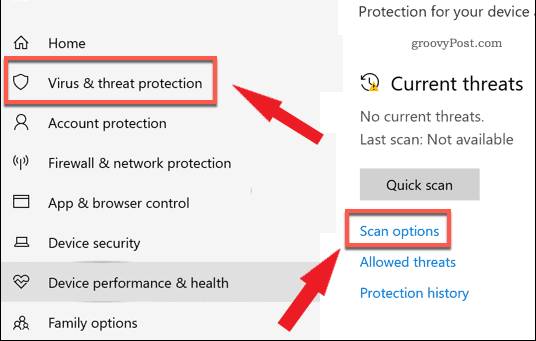
- Select Microsoft Defender Offline scan and click Scan Now.
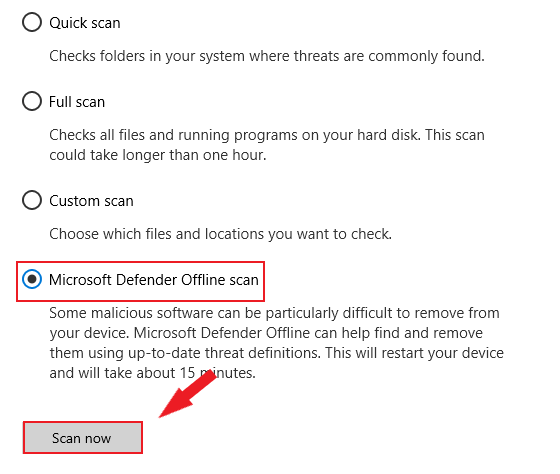
Windows will restart and run the scan. Anything it finds gets removed or quarantined automatically, which should restore stability and make the PC safe again.
Method 7: Review Windows error logs
If none of the previous steps worked, it's time to dig into the specific cause behind the crashes.
The Windows event logs can point you in the right direction.
Here's how to check them:
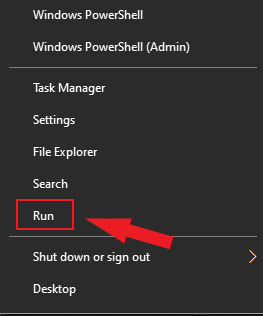
- Right-click the Start Menu and select Run.
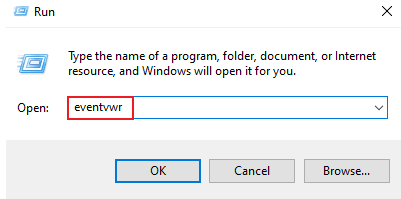
- Type
eventvwrand click OK to open Event Viewer.
- In Event Viewer, expand Windows Logs -> Application in the left sidebar.
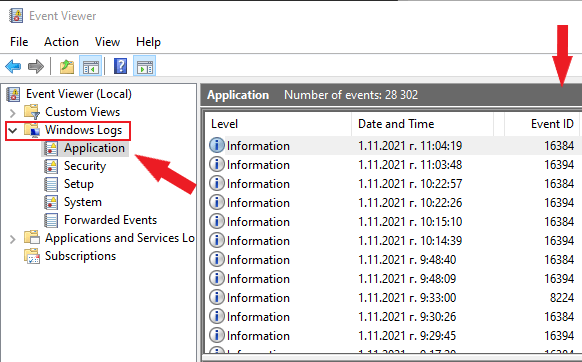
- Look through the Application list for Event ID 1000, which typically flags an Explorer-related error.
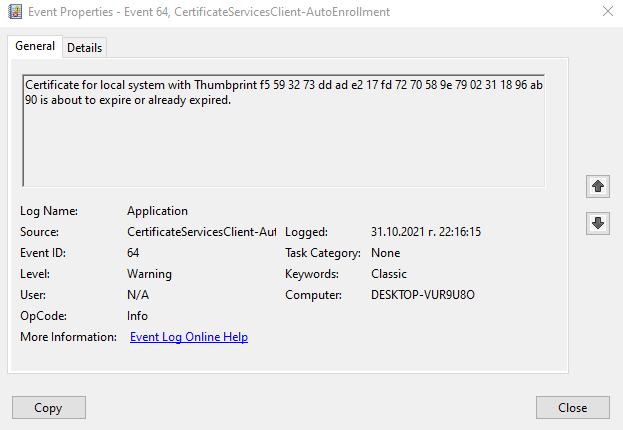
- Click on any matching entries and check the General tab for details — that context should help you narrow down and resolve the underlying issue.
If a specific third-party app turns out to be the cause, it will show up in these logs, and you can uninstall it to put a stop to the crashes.
Conclusion
With any luck, one of these methods solved your File Explorer crashes. If the problem persists after trying all of them, it may be worth consulting a specialist or reinstalling Windows.

1 Comment
Thank you so much for sharing this information!