
Chances are you already have a handful of browser extensions installed, and depending on which ones, they can either make browsing smoother or noticeably worse. This article covers what extensions actually do, how risky they can be, and the steps to remove them from each major browser.
I. What exactly are browser extensions, and what are they typically used for?
Browser extensions — sometimes called add-ons or plugins — are lightweight tools that bolt extra functionality onto your web browser. So why bother installing any?
There are thousands upon thousands of them out there covering almost any need you can think of. Picture them as tiny apps running inside your browser, constrained by whatever limits the browser itself enforces. If there's a feature you wish your browser had, odds are good that an extension already provides it.
A few examples of what extensions can do for you:
1. Ad blocking – this category of add-on filters page content and strips out intrusive pop-ups, video ads, and similar clutter.
2. Tab/session managers – these periodically save your open tabs so a crash or accidental close doesn't cost you your browsing session.
3. Bonus browser features – something like a Merge Windows extension, which combines tabs scattered across several windows into one.
II. Are browser extensions safe, or can they pose a real risk?
The question of extension safety keeps getting more relevant over time. Vetting new submissions is an area where Google, Mozilla, and Microsoft all still have room to improve. Any extension store will, sooner or later, end up hosting something that breaks the rules or is outright malicious.
Extensions that don't phone home to an external server are generally low-risk. The ones that do connect out to fetch or send data are where things get dicey, since that's the avenue attackers can exploit. If the server an extension talks to gets compromised, whatever user data passes through it can end up misused.
Plenty of security tools try to monitor extension behavior, but offering airtight protection is a tall order. Because extensions run inside the browser itself — a program that's inherently trusted and constantly reading/writing files and exchanging data with the internet as part of its normal job — it's genuinely hard for security software to tell malicious extension activity apart from everything else the browser is doing.
Most extensions are built with good intentions, but some end up slowing your browsing down, breaking things, or even opening the door to security problems. That's reason enough to clean out the ones you don't need. Below are the removal steps for each major browser — let's get into it.
III. How do you remove browser extensions?
Removing extensions in Chrome
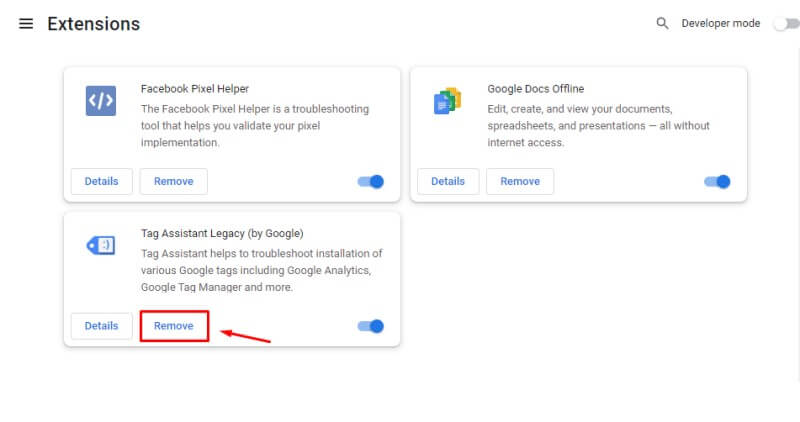
To remove an extension from Google Chrome:
- Open Chrome and click the three-dot menu in the upper-right corner.
- Go to "More Tools," then click "Extensions."
- Find the extension you want gone and click "Remove."
Removing extensions in Firefox
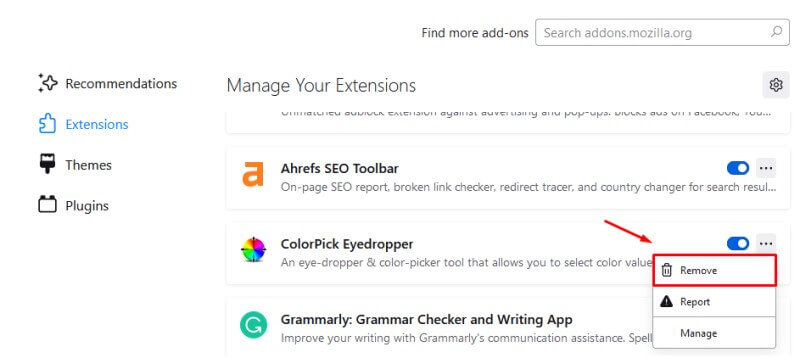
To get rid of an extension in Mozilla Firefox:
- Open Firefox and click the menu button in the upper-right corner.
- Select "Add-ons and themes."
- Click the three-dot menu next to the extension you want removed, then choose "Remove."
Removing extensions in Opera
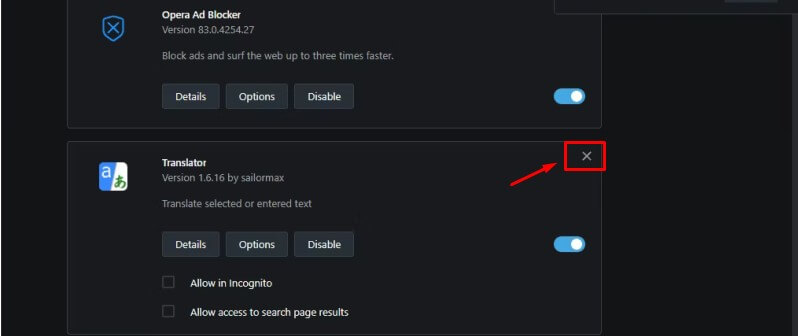
- Open Opera and click the Opera logo in the top-left corner.
- Go to "Extensions" > "Extension."
- Click the small "X" next to the extension you want to get rid of.
Removing extensions in Microsoft Edge
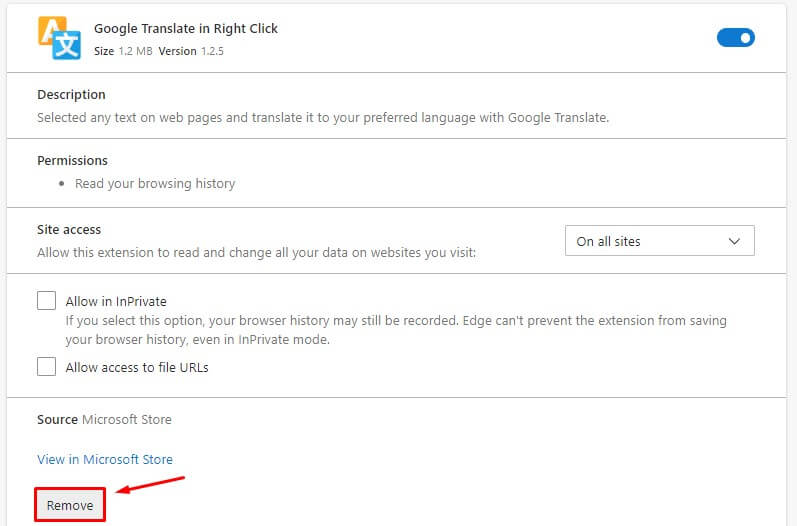
The steps closely mirror Chrome:
- Open Edge and click the menu button in the top-right corner.
- Click the puzzle-piece icon next to the address bar.
- Click "Manage Extensions."
- Find the extension you want removed and click "Remove."
The steps above generally get the job done, but there's also a single tool that covers every browser at once:
Revo Uninstaller Pro, third-party software from VS Revo Group, rolls all of these into one place. Its Browser Extensions module lists every extension installed across all your browsers in one convenient view. Revo Uninstaller Pro 5 currently covers Google Chrome, Mozilla Firefox, Microsoft Internet Explorer, and Microsoft Edge.
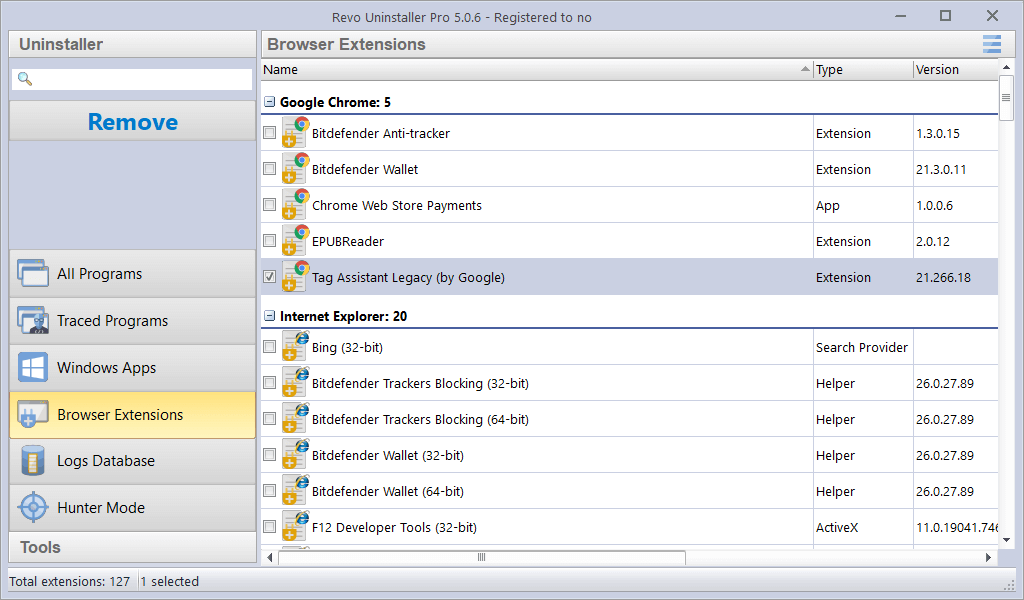
Removing extensions this way is straightforward:
- For Microsoft Edge extensions, select the one you want gone and click Uninstall.
- Because Edge extensions are installed as apps, clicking Uninstall kicks off the standard Windows app-removal process.
For every other browser, the flow is the same except you click Remove instead, which triggers the browser's own extension-removal process.
IV. Conclusion
The vast majority of browser extensions are harmless, but there's no way to guarantee that every single one out there is trustworthy. Your best defense is simply keeping the number of extensions you have installed to a minimum. Before adding a new one, do a little digging first. Check:
- How popular is the extension?
- What are other users saying in reviews?
- Is it made by a company with a solid reputation?
Extensions built by Microsoft or Google tend to be safe bets and are usually kept up to date.
If you find an extension you no longer need, or discover one that's causing problems, remove it right away — either with Revo Uninstaller Pro 5 or through your browser's built-in tools.
And if you can get by without extensions altogether, skipping them entirely is the safest route of all.

No Comments