
If several people share the same computer, separate user accounts make sense so everyone keeps their own desktop background, settings, and files. Occasionally, though, a Windows user profile becomes corrupted, and the fix is to remove or reset it. Below we cover how to fully delete a user profile in Windows 10, as well as how to reset one back to its defaults without wiping it entirely.
User account vs. user profile: what's the difference?
Most people use these two terms interchangeably, but they aren't quite the same thing.
The user account is what you sign in with. It's tied to your name, your desktop background, and any other personalization you've set up. When you customize these things, Windows stores them somewhere so it can reload them the next time you log in.
That storage location is the user profile.
Every time a new profile is created, Windows sets it up with default settings — stock background, default theme, and so on.
Normally, deleting a user account also removes its associated profile. Sometimes, though, leftover folders and files stick around and quietly eat up disk space.
There's also a way to delete just the profile while keeping the account intact. It's a slightly more involved process, but it can fix problems tied to a specific profile's personalization settings.
Once a profile is removed, Windows treats that account as brand new and builds a fresh profile folder the next time it's used to sign in.
How to delete a user account in Windows 10
Deleting a user account also removes the profile tied to it, along with all its personal settings and files.
Occasionally the user folder survives the process. You can safely browse to C:\Users\(user folder name) and remove it yourself — but only for accounts that are currently signed out. You cannot delete the folder for whichever account you're actively using.
Here's how to do it:
- Right-click the Start Menu and choose Settings.
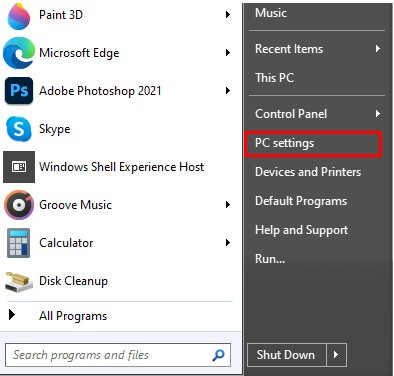
- Go to Accounts->Family & Other Users, where you'll see every account set up on the machine.
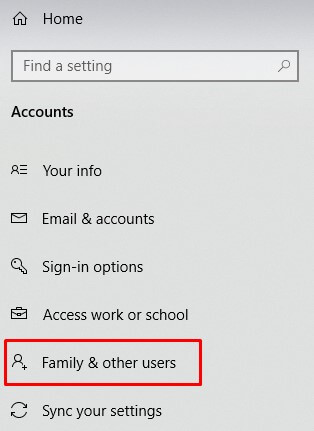
- Pick the account you want gone, under either Other Users or Your Family, then click Remove.
- Confirm the removal by clicking Delete account and data.
Confirming the profile is actually gone
Deleting the account usually takes the profile with it. If it doesn't:
- Open Windows File Explorer
- Type
C:\Usersin the address bar. If a folder matching the account name is still there, right-click it and choose Delete. - Head to the Recycle Bin, right-click it, and choose Empty Recycle Bin to finish removing it.
Sometimes traces of the data still linger on the drive afterward. That's why we also cover how to permanently and unrecoverably erase files from your PC.
How to reset a corrupted User Profile in Windows
When a profile gets corrupted, deleting it forces Windows to rebuild it from scratch with default settings.
Follow these steps:
- Press Win Key + R to open Run, then type:
systempropertiesadvanced
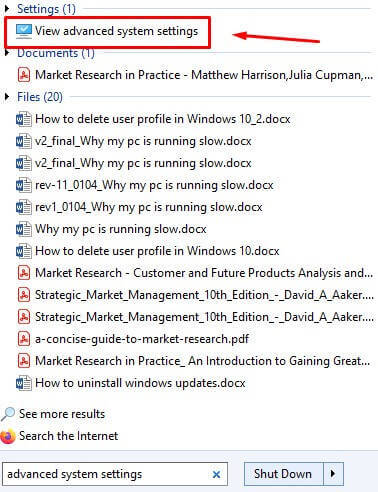
- In the Advanced tab, find User Profile and click Settings.
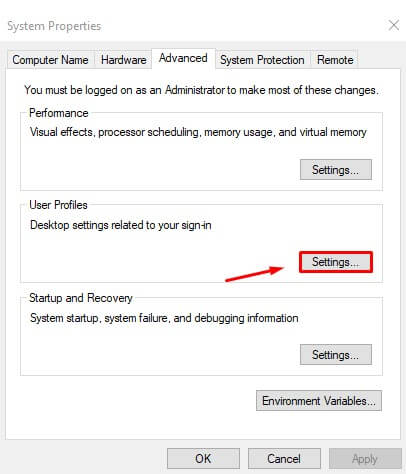
- Select the profile you want to reset and click Delete.
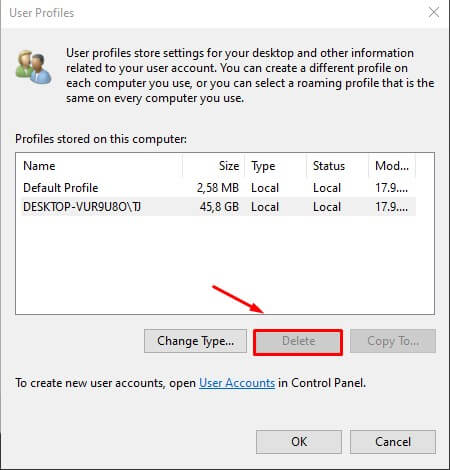
- Confirm when prompted.
- Open File Explorer, go to
C:\Users, find the leftover folder for that account, right-click it, and choose Delete.
Wrapping up account and profile removal on Windows 10
Deleting a profile is a solid fix when an account is corrupted and you can no longer sign in normally. Before making changes like this, it's smart to create a backup first.
Overall, removing a user profile in Windows 10 doesn't take many steps. Head into Settings, find the account section, and remove the profile you no longer need. Just double-check that anything important is backed up beforehand, since the process can't be undone. With the steps above, you should be able to clean up unused profiles and keep your system tidy without much hassle.

2 Comments
Great info, I was just about to lose my mind because my user profile was also corrupted when I saw your article on Twitter! Thanks!
Vielen Dank für Ihren sehr nützlichen Artikel. Ihre Mail musste ich leider erst übersetzen, da ich kein Englisch kann.
Der Artikel wurde mir durch Google übersetzt, so das ich mir alles kopieren konnte.
Weiterhin nochmals vielen Dank. Die angebotene Version des Revo Uninstallers haben Sie mir vor Kurzem schon zum Download angeboten.
Mit freundlichen Grüßen aus Deutschland
R.Rieß