
Trying to get rid of a folder on your Windows 10 or Windows 11 PC that simply refuses to leave? It might be a protected system folder, or one that another program still has a hold on. Here’s how to remove those stubborn “undeletable” folders.
Why won’t Windows let you delete this folder?
The most frequent reason is that it’s actually part of the Windows system itself. In that case, Windows deliberately blocks the deletion because removing it could make your PC unstable.
If you know it isn’t a system folder, chances are an installed app is currently using it. Windows won’t let you modify or remove a folder while a program has it open, so closing that app first is worth trying before anything else.
If neither of those explains what’s happening, try one of the options below.
Option 1: Delete it with Command Prompt
Command Prompt lets you force a deletion with a single command.
Open the “Start” menu, search for “Command Prompt,” and choose “Run as Administrator” from the panel on the right.
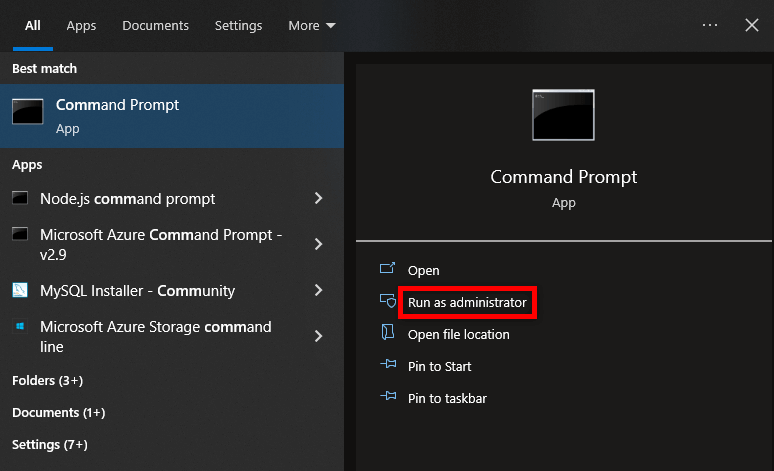
Confirm the “User Account Control” prompt by clicking “Yes.”
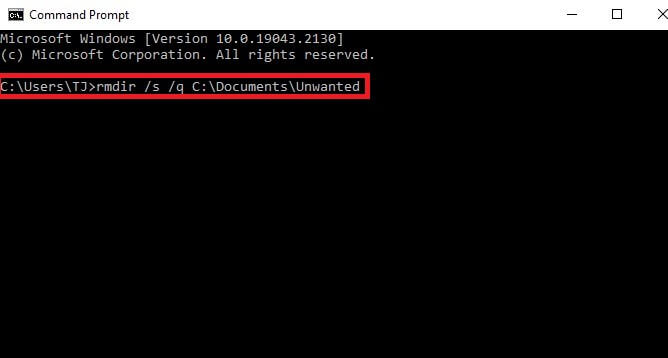
In the Command Prompt window that opens, type the following and press Enter:
rmdir /s /q PATH
Replace PATH with the actual location of the folder you want removed.
If the path includes spaces, wrap it in double quotes.
For instance, to remove a folder named Unwanted inside your Documents folder on the C drive, you’d run:
rmdir /s /q C:\Documents\Unwanted
Option 2: Restart into Safe Mode
If you can’t tell which program is holding your folder hostage, restarting into Safe Mode and trying again often works. Safe Mode only loads essential Windows components, so third-party apps aren’t launched automatically and can’t lock files.
Follow this guide to boot your Windows 10 or Windows 11 machine into Safe Mode.
Once you’re in Safe Mode, open File Explorer, browse to the folder, right-click it, and choose “Delete”.
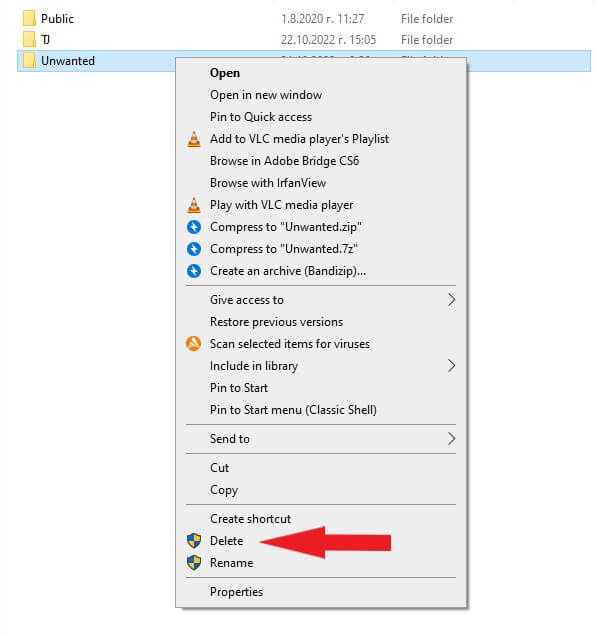
The folder should now be gone.
Don’t forget to also empty it from the Recycle Bin — open the Bin, right-click the item, and select “Delete” again to remove it for good.
Option 3: Use WinRAR to force out stubborn folders
It sounds unusual, but the file-compression tool WinRAR can clear out folders that won’t delete normally. It works by compressing the folder into an archive and then removing the original once the archive is created.
Once WinRAR finishes building the archive, it deletes the source folder automatically. You can then delete the resulting archive file whenever you’re ready.
Start by downloading and installing the free edition of WinRAR. Restart your Windows 10 or Windows 11 PC afterward so WinRAR’s options appear in the right-click context menu.
After the restart, open File Explorer, find the folder you want gone, right-click it, and choose “Add to Archive”.
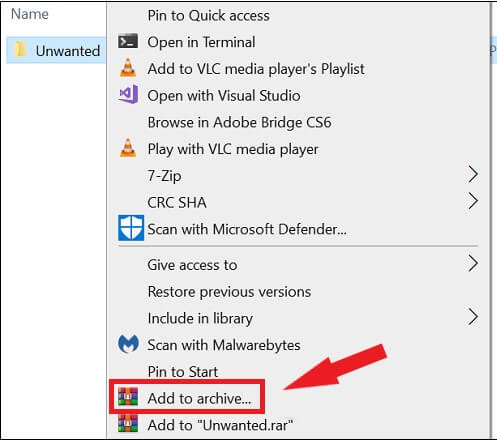
In the “Archive Name and Parameters” window, under “Archiving Options,” check the box for “Delete Files After Archiving,” then click “OK.”
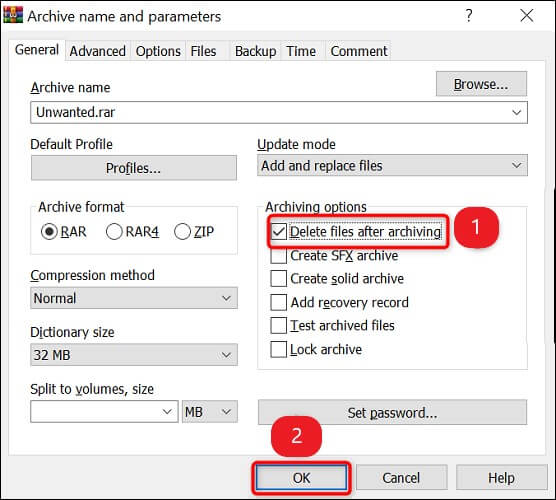
Let WinRAR finish building the archive from your chosen folder. Once it removes the original folder, feel free to delete the archive too.
With any of these three options, you can finally clear out folders that Windows refuses to remove the normal way.

26 Comments
Wanted to say THANKS for this as after hours of searching/trying different approaches your method got rid of an empty (undeletable) folder right away!
Winrar was the only option that worked for me on Windows 11. Thanks for your helpful article. Cheers!
Thank you so much, I’ve tried everything to delete a folder on win11. The WinRAR method worked like a charm, so easy!
“Kris says:
2023-04-17 at 18:56
Thank you so much, I’ve tried everything to delete a folder on win11. The WinRAR method worked like a charm, so easy!”
The Same here
Thanks very much l had failed to delete these files
Winrar was the only one that worked. So thank you for this tip.
Windows wouldnt let me delete the folder, it had something to do with Nordlocker, it someone broke the folder, and i couldnt open or delete.
Tried the CMD etc, didnt worked, but then i found this website with this Tip, and worked, it was so fast!
Thank you.
I am using Windows 11.
Winrar did the trick.
Thank you very much!!!
I’d done the command prompt option and everything else and nothing worked. Came here and saw the ‘winrar’ option and it worked, with out a problem ….. as this seems the most logical and works, when all else fails, just an idea, maybe put this option 1st on your page …..
P.S thank you so much
Method 3: WinRAR was the only option that worked for me too in Windows 11. Mighty thankful for your help. After trying virtually everything else and wasting hours of my time, this method worked like a charm.
You dont need to use winrar.There is a windows applications named Wise folder delete.It is free
BLESS YOUR SOUL MATE YOU SAVED MY LIFE
The winrar trick worked like magic bless you
After several attempts, I found this method and it worked.
Thanks a bunch
After so much effort and research, I am very happy that an application like winrar has such a function. My problem took 3 days and was solved in 1 minute 🙂
Ive had a bunch of folders that for some reason were undeletable for many years. I tried Eraser, Safe Mode etc . . . FINALLY the Archive with Delete Original Files option checked actually worked, then i deleted the archived folder. AMAZING! Thank you!
I’m not usually comment or maybe this is the first time that I will comment om a blog. But wow! Thank you so much! Winrar did the trick!.
That was amazingly easy and solved the problem in no time. I would have never thought of this – thank you so much!!!
Thank you so much, the options you gave where so help full.
I tried many things for months to delete a stubborn folder from my desktop that I used briefly to make a mix on a usb.
The Winrar method actually worked despite the first two methods failing for me.
Thanks
THANK YOU!!! FINALLY after a year or so, I was able to delete two files on my desktop!
Próbowałem wszystkiego i nic nie pomagało, dopiero Metoda 3: Użyj WinRAR, aby wymusić usunięcie folderów pomogło :). Super dziękuję.
thanks to you
the safe mode option worked for me very easily.
WINRAR METHOD SO EPICCCCCCCCC
Wow, you deserve a price! after months of looking for several different solutions and none of them worked, you solve my problem!
Safe Mode? nah
CMD prompt? naaaah
WinRar did it!!
Thankyou
None of the above worked to delete a system folder left over by Zonealarm. Easiest way I found, was to boot into safe mode, run a command shell, and then run the command TAKEOWN against the file. Then you can assign privileges and take ownership of subfolders/files etc. then delete as normal and reboot
I saw others comment how the Winrar option worked so went straight for that and it worked a dream, thank you!