A slow startup on Windows 11 usually comes down to a handful of predictable culprits: too many apps launching at once, a cluttered drive, or hardware settings that were never tuned for speed. The good news is that most of these issues can be fixed without any special tools. Below is a practical set of methods you can work through to cut down the time between pressing the power button and reaching your desktop.
Here's a quick overview of what we'll cover:
- Disable startup programs
- Remove unnecessary files and programs
- Enable Fast Startup
- Defragment your hard drive
- Use an SSD
- Adjust BIOS settings
I. Turn off unneeded startup programs
Many applications quietly register themselves to launch the moment Windows loads, and each one adds a little extra weight to your boot sequence. Trimming this list is one of the fastest ways to notice a difference. Here's how to review and manage it:
- Open Settings with the Windows + I shortcut.
- Select Apps in the sidebar, then choose Startup to see everything set to launch with your PC.
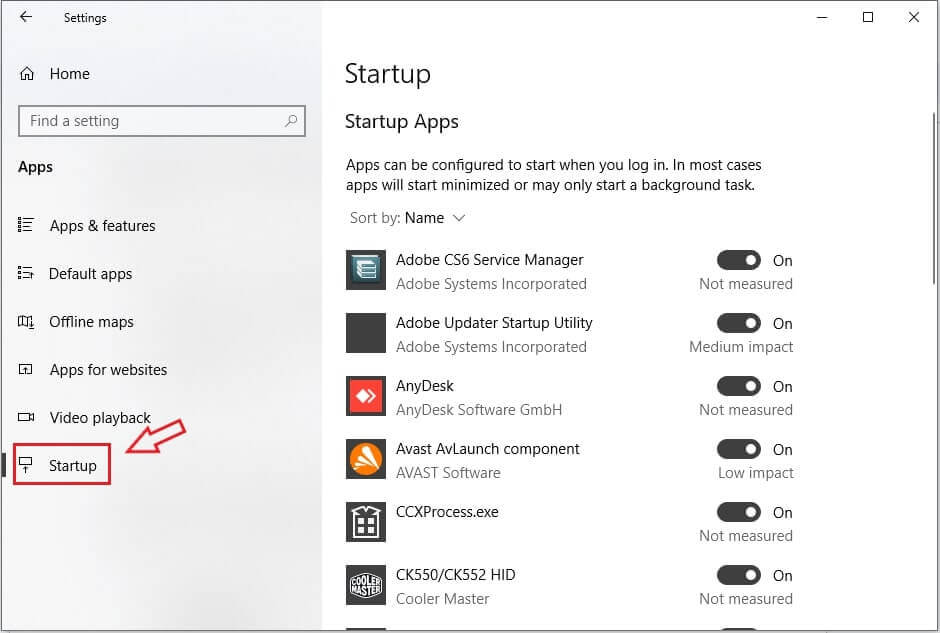
- Switch off any entries you don't need running automatically. Windows also shows a "startup impact" rating next to each item, giving you a sense of how much it's actually slowing things down.
II. Clear out clutter and unused software
A drive packed with leftover files and rarely used programs can drag on boot performance and general responsiveness alike. Cleaning this up frees resources that Windows would otherwise have to sort through during startup.
We go into more detail on removing software properly, including with Revo Uninstaller, in this guide.
III. Turn on Fast Startup
Fast Startup is a built-in Windows 11 feature that blends elements of shutdown and hibernation. Instead of fully closing the kernel session, it saves a snapshot to disk so the next boot can load faster.
To switch it on:
- Open Run with Win + R.
- Enter
controland press OK to launch the Control Panel. - Head to System and Security, then Power Options.
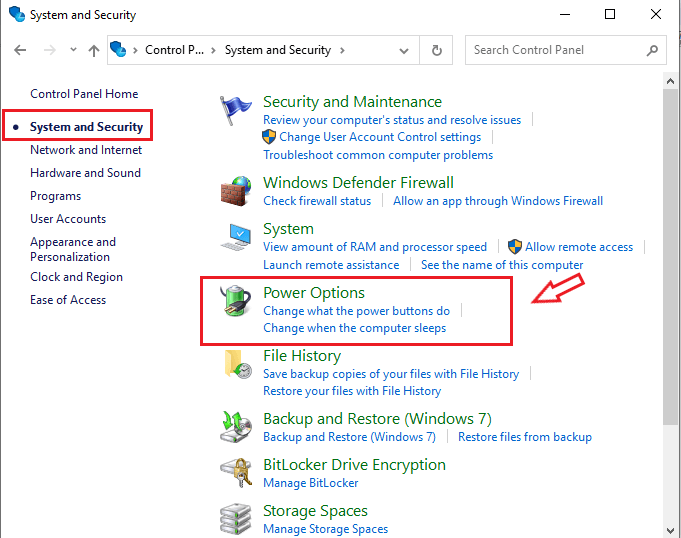
- Choose Choose what the power buttons do from the left menu.
- Click Change settings that are currently unavailable.
- Tick Turn on fast startup (recommended) under Shutdown settings to enable it.
- Untick the same box if you'd rather disable it.
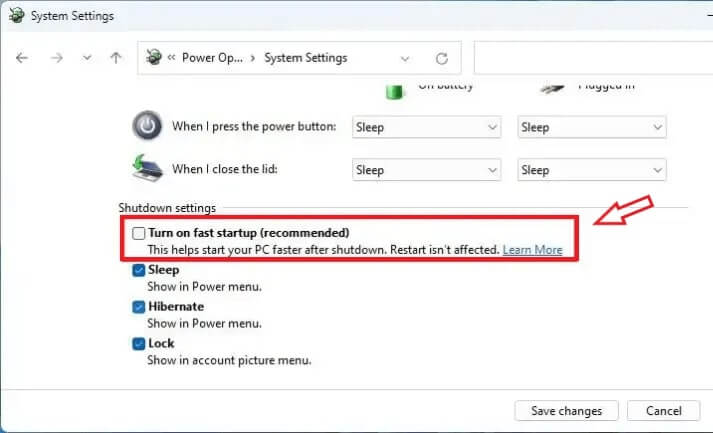
- Confirm with Save changes.
IV. Defragment a traditional hard drive
If your system still runs on a mechanical hard disk, fragmented data can be part of why startup feels sluggish.
Windows makes defragmenting straightforward:
- Open the search bar with Windows key + S.
- Search for "Defragment and Optimize Drives" and open the tool.
- Pick the drive you want to work on.
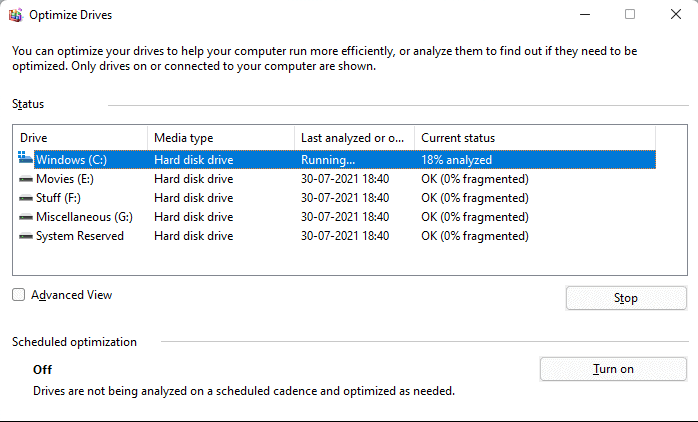
- Select Optimize.
- Let the process finish before using the drive intensively.
V. Move to solid-state storage
Most Windows 11 machines already ship with an SSD, since it's dramatically quicker than spinning platters at reading the files needed during startup. If yours still relies on a mechanical drive, or an older SATA SSD, upgrading is one of the most noticeable changes you can make.
Adding more RAM helps too. Extra memory gives Windows more room to keep startup processes and cached data in fast, volatile storage rather than repeatedly hitting the disk.
VI. Fine-tune BIOS/UEFI settings
Your motherboard firmware controls what happens before Windows even begins loading, and a few adjustments there can shave real time off the process:
- Getting into the BIOSSee our separate walkthrough on accessing BIOS settings if you're not already familiar with it.
- Reordering boot prioritiesOnce inside, look for the Boot tab and find "Boot Order" or "Boot Priority." Move the drive holding your Windows 11 installation to the very top using the arrow keys.
- Turning off idle hardwareUnused ports and controllers, like legacy serial or parallel connections, can still get initialized during boot. Find them under Peripherals or Integrated Devices and set them to Disabled.
- Switching on Fast BootMany firmware versions include a Fast Boot toggle under the Boot tab. Select it and set it to Enabled to skip some hardware checks at startup.
- Saving and leavingWhen you're satisfied with the changes, go to the Exit tab, choose Save Changes and Exit, and confirm.
Working through even a few of these methods should noticeably shorten how long you wait before your desktop is ready to use.

2 Comments
it,s the best program for the pc android its make my pc and android faster
Revo Uninstaller the best .
Going to try it. Little worried what might happen if I disable Edge Browser entirily in W11 pro. Will see soon 😀