
Startup programs are the apps that launch on their own the moment Windows finishes loading, whether or not you actually asked them to. A handful of these running quietly in the background is normal, but when the list grows too long, your boot time suffers and system resources get tied up before you've even opened anything yourself. Trimming that list is one of the simplest ways to get a snappier startup.
Deciding what's safe to turn off
Not every startup entry deserves to be disabled. Before switching anything off, think about whether you actually rely on it right after logging in. Programs that hog CPU, memory, or disk access during boot are good candidates for disabling, while tools you use daily, like your antivirus or cloud sync client, are usually worth leaving alone.
Below you'll find instructions covering Windows 11, Windows 10, Windows 8, Windows 7, and XP
- Using Revo Uninstaller Pro's Autorun Manager
- Checking a program's own settings
- Managing startup apps in Windows 11
- Managing startup apps in Windows 8 and 10
- Managing startup apps in Windows 7 and XP
Using Revo Uninstaller Pro's Autorun Manager
Third-party tools like Revo Uninstaller Pro bundle a dedicated feature for this exact task, letting you toggle startup entries without hunting through several menus:
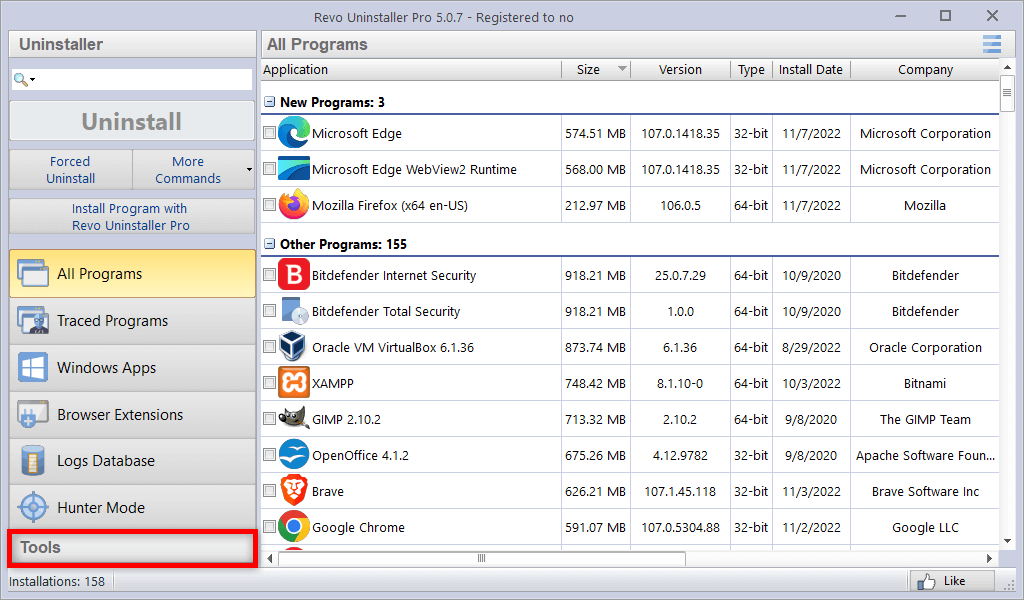
- Launch Revo Uninstaller Pro and open the Tools section.
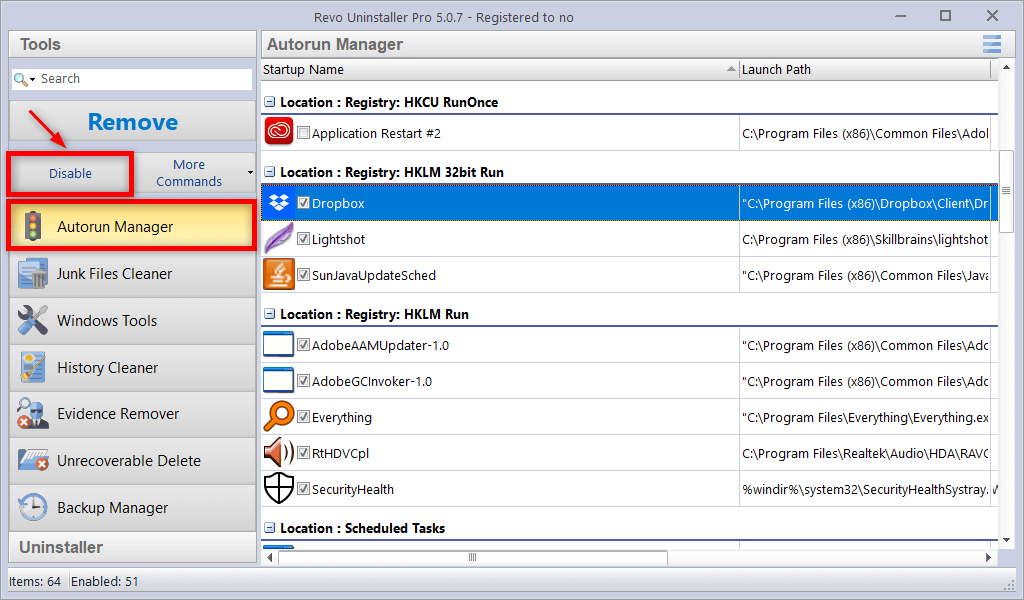
- Choose Autorun Manager.
- Pick the entry you want to stop from launching and press Disable.
Checking a program's own settings
Some applications include a built-in toggle for launching at startup, tucked away in their preferences or configuration menu. This varies quite a bit from one program to another, and plenty of software simply doesn't offer this option, leaving Windows itself in charge of deciding what launches automatically.
Managing startup apps in Windows 11
- Open the Start menu and choose Settings.
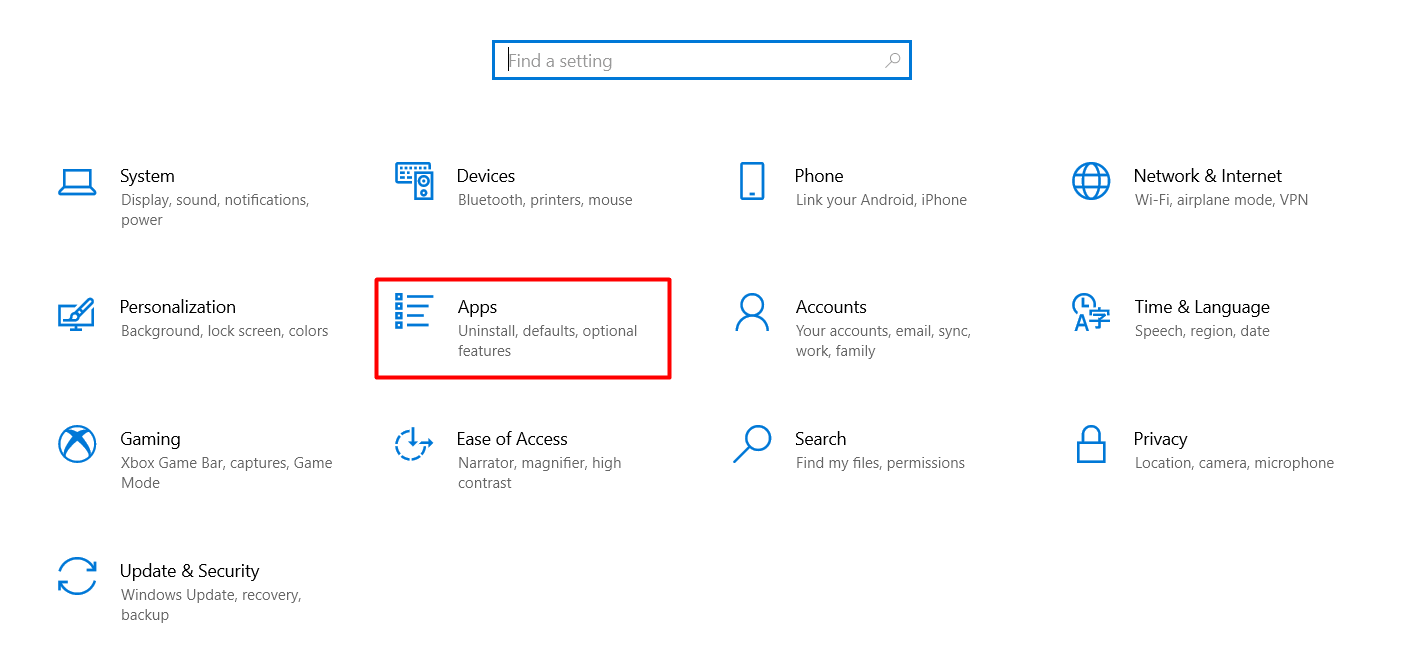
- Inside Settings, go to Apps.
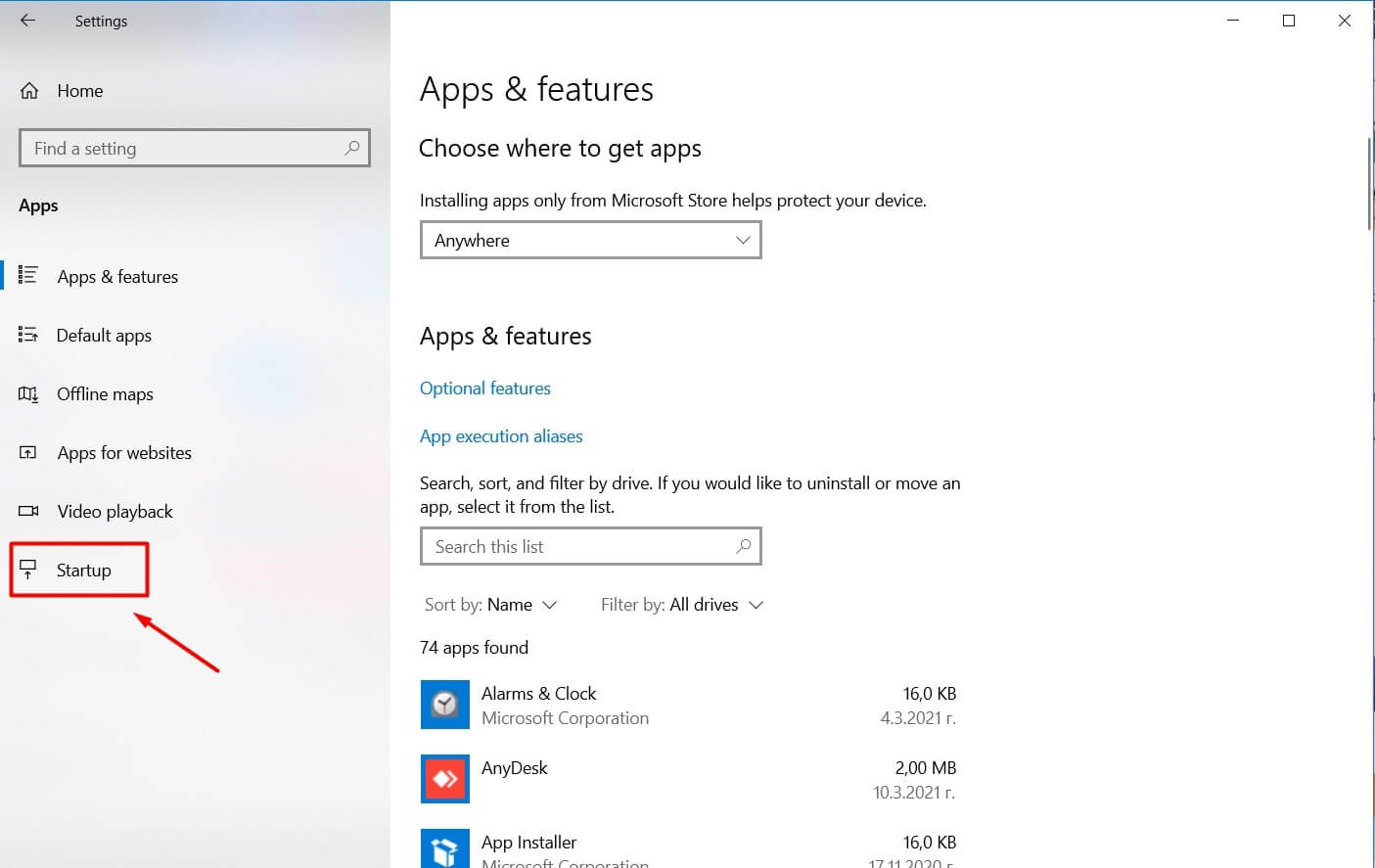
- Select Startup from the left-hand menu.
- From this list, flip the switches to turn programs on or off as they launch with Windows 11. A nice touch here is that each entry shows its estimated impact on boot time, making it easier to spot the real offenders.
Task Manager offers an alternative route to the same settings:
- Open Task Manager with Ctrl+Shift+ESC.
- Switch to the Startup tab.
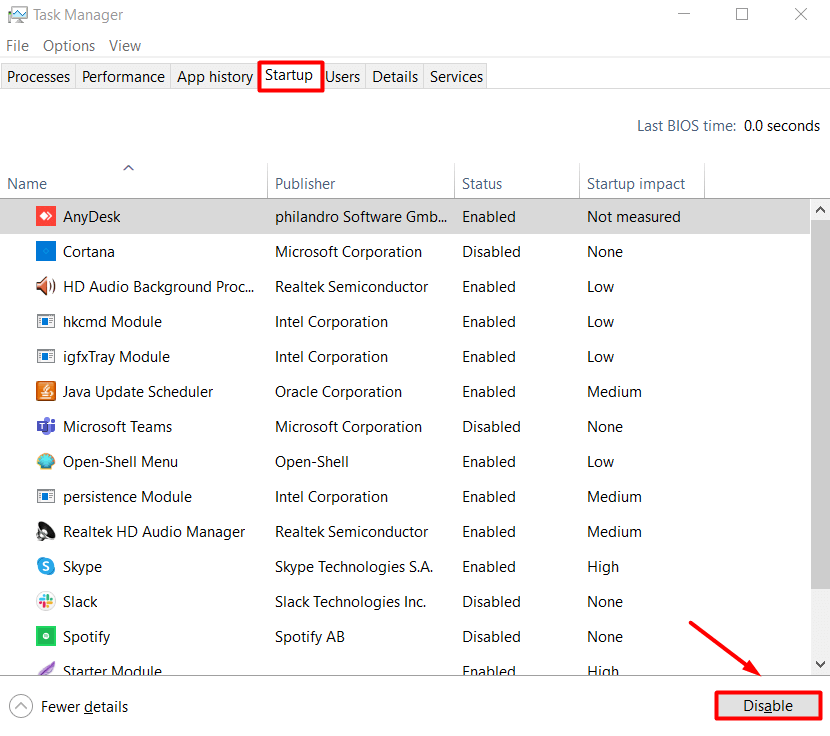
- Highlight the program you want to stop and click Disable.
Managing startup apps in Windows 8 and 10
- Open the Start menu and click Settings.
- Choose Apps.
- Click Startup once the Apps window loads. You'll see every installed app currently set to run when Windows 8 or 10 boots. Turn off whichever ones you don't need to speed up your startup.
Managing startup apps in Windows 7 and XP
Older versions of Windows require a slightly more manual approach:
- Open the Start menu, type
Runinto the search box. - In the Run dialog, enter
msconfig. - Go to the Startup tab inside MSConfig. A checked box next to a program means it's set to launch at boot. Clear the boxes for anything you want to disable, then click Apply.
Be careful with MSConfig on older Windows versions, since it can also list core system processes. Only disable entries you're confident about, as removing the wrong one could cause problems with your operating system.
Trimming your startup list pays off in both boot speed and overall responsiveness. Whether you rely on Task Manager, the Settings app, or a dedicated tool such as Revo Uninstaller Pro, Windows gives you several ways to get unwanted programs out of your startup sequence. Once you've gone through the steps above, your PC should reach a usable desktop noticeably faster, with system resources freed up for the things you actually want to run.

No Comments